
Updated: April 22, 2026
Table of contents
Overview
QR codes allow leads and members to quickly access your MyStudio registration links by simply scanning with their phone. This makes them ideal for:
-
Tournaments
-
Conventions
-
School events
-
Community demonstrations
-
Locations with limited Wi-Fi
Once scanned, customers are taken directly to your MyStudio trial, membership, event registration page, or retail page to sign up or purchase on the spot.
This article explains two ways to create a QR code based on the tools available to you.
Before you start
-
Make sure your MyStudio trial, membership, or event link is live.
-
Have the exact link open and ready to copy.
-
Choose a method below based on how much customization you want.
How to find the right link
Important: You need the customer-facing registration link for the specific offering you want people to sign up for.
There are two types of links you can use, depending on what you want customers to see when they scan:
Single offering links
Use these when you want the QR code to go directly to one specific trial, membership, event, or retail item.
-
Find the trial/membership/event/retail item you want to share.
-
Click the URL or Copy URL button on that offering.
- Paste the URL into your web browser to confirm it opens the correct page.

All offerings links
Use these when you want customers to browse all available options in a category — all your public trials, all your public memberships, or all your public events.
-
Go to the section you want to share (trials, memberships, events, or retail).
-
Open the Settings for that section.
-
Copy the URL shown there.
-
Paste the URL into your web browser to confirm it opens the correct page.
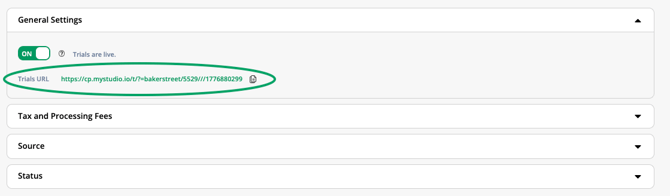
Option 1: Create a QR code using Chrome or Microsoft Edge
Use this for a fast QR code directly from your browser.
-
Open the MyStudio page you want the QR code to link to.
-
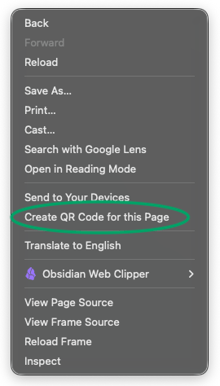
Right-click anywhere on the page.
-
Select Create a QR code for this page.
-
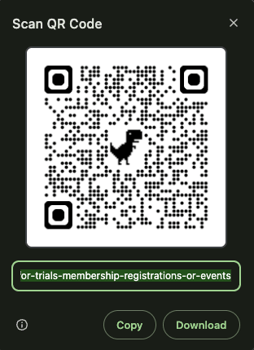
Download the QR code image.
-
Print and display at your event.
Option 2: Create and customize a QR code using a QR code generator website
Use this if you want to add your logo, custom colors, or a branded look.
-
Copy your MyStudio registration link.
-
Go to a trusted QR code generator website.
-
Paste your link into the generator.
-
Customize the design if desired.
-
Download the QR code.
-
Print or share digitally.
Before you print: Best practices
-
Test it first — scan the QR code yourself to confirm it goes to the right page.
-
Use high contrast — dark code on a light background scans most reliably.
-
Post at eye level when displaying at events.
-
Add a call to action button or text by the QR code so people know what to do:
-
"Scan to Start Your Free Trial"
-
"Register Here"
-
"Sign Up Today"
-
Still need help? Contact your MyStudio account manager or reach out to our support team.