
Updated: January 14, 2026
Table of contents
Overview
Payment receipts are available for individual transactions and can be quickly accessed from the customer or transaction record. Once located, receipts can be downloaded for your records or emailed directly to the customer.
Where to find payment receipts
-
Log in to your V2 account.
-
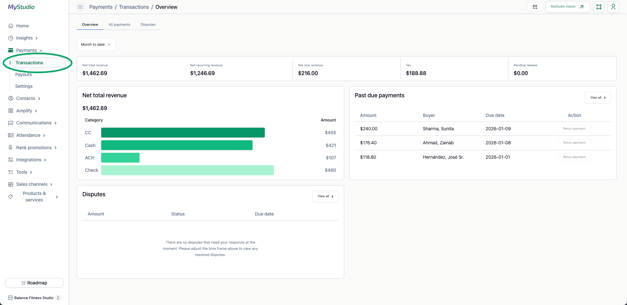
On the left side, select "Payments" and then "Transactions."
-
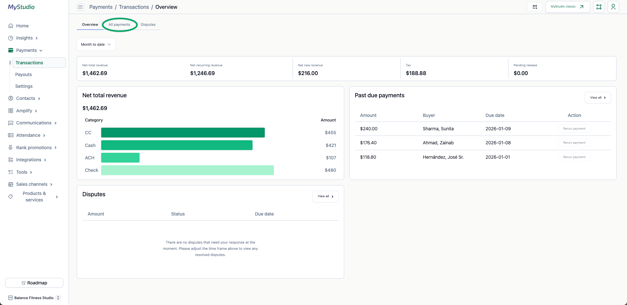
Select "All payments."
-
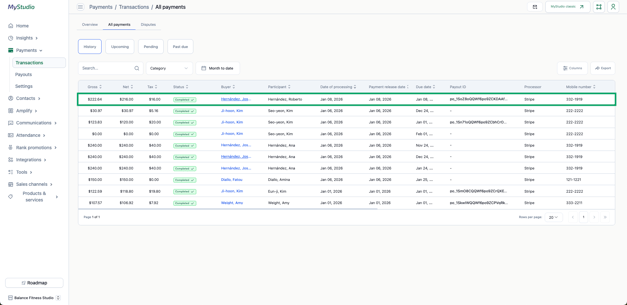
Find the payment you need a receipt for and click on it.
-
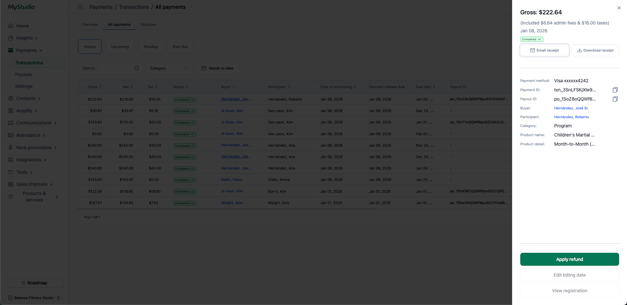
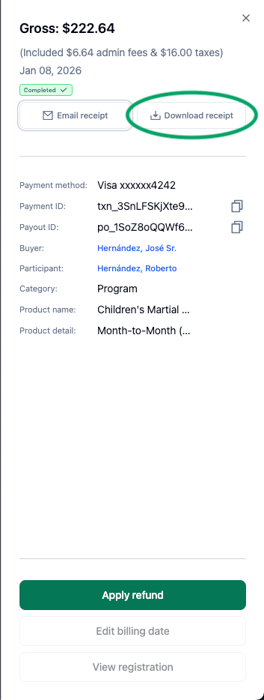
A slide-out panel will appear on the right side of the screen displaying the transaction details.
-
From this slide out panel, you can email or down the receipt for that single transaction.
Download a receipt
-
From the transaction details, select "Download receipt."
-
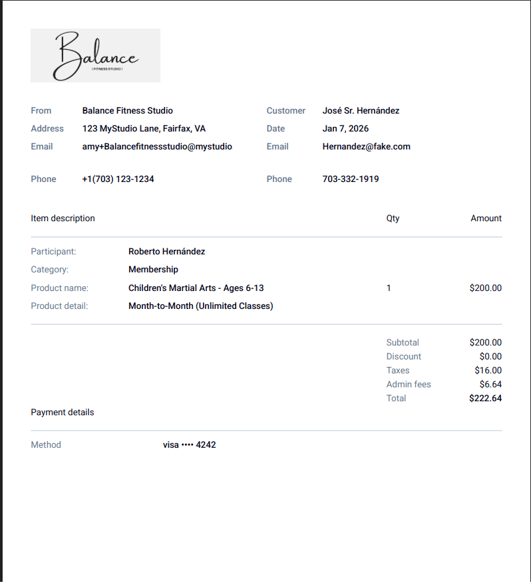
The receipt will download as a PDF to your computer or device.
-
Save or share the file as needed.
Tip: This option is helpful if you need to print the receipt or attach it to a message outside of MyStudio.
Email a receipt
-
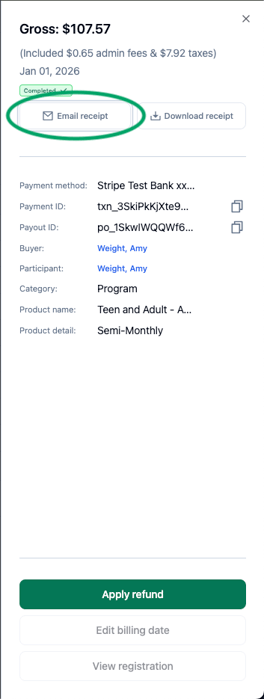
From the transaction details, select "Email receipt."
-
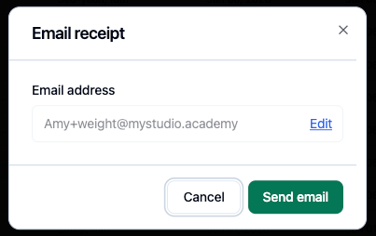
A pop up will appear, verifying the email on file. You are able to edit the email address, if needed.
-
Press "Send email."
The receipt is sent immediately to the customer email and does not require you to manually attach anything to the email.
Still need help? Contact your MyStudio account manager or reach out to our support team.