
Updated: April 20, 2026
Haven't purchased or set up your website yet? See V2: Business Website Pro: What's included and how to purchase.
Table of contents
Permissions and accessibility
Staff access:
-
Admin: Full access
-
Manager: Full access
-
Staff: No access
MyStudio plan restrictions:
-
Add-on purchase required, but available for all plans.
How to log in and enter edit mode
First time logging in
-
Check your email for the editor invite from MyStudio.
-
Click the link in the email.
-
Enter your first name, last name, and create a password.
-
Click Edit Site to start editing.
Returning to your site to make edits
-
Go to your website.
-
Look for the up arrow (↑) button at the bottom right of the page.
-
Click it and enter your login information.
-
Click Edit Site.
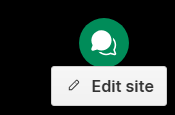
Don't see the up arrow? Add ?edit to the end of your URL. Example: yoursite.com → yoursite.com?edit
Purple items vs. regular items - what's the difference?
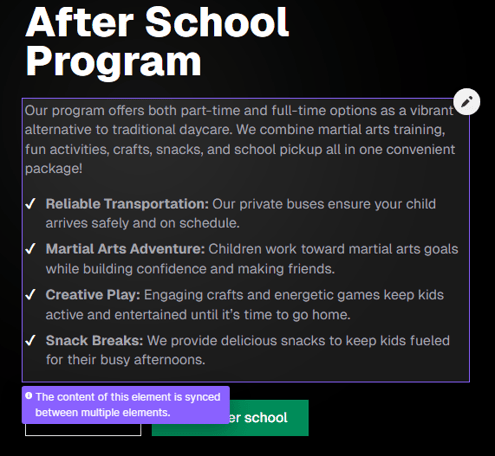
When editing the website, you may notice that some items you hover over are purple and others are not.
|
Outline |
What it means |
How to edit |
|
Purple |
Linked to multiple places on the site |
Go to collections at the bottom; edit from there, not directly on the page |
|
None |
Standalone content | Click and edit directly on the page |
Exceptions: Links and images with purple outlines can be edited directly on the page.
How to switch between pages
To switch between pages:
-
Enter edit mode.
-
Click Pages at the bottom of the screen.
-
Select the page you want to edit.
Two types of pages:
-
Static pages: The main tabs at the top of your website. These cannot be added or removed on your own. Contact your Account Manager for changes.
-
Non-static pages: Pages you can edit freely, like blog posts and program listings.
How to edit a button link
To edit the link of a button:
-
Enter edit mode.
-
Hover over the button you want to change.
-
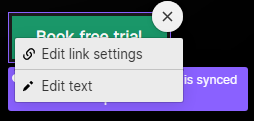
Click the settings gear icon that appears.
-
Click Edit link settings.
-
Update the link and save.
How to update the class calendar
The class calendar is connected to a Google Sheet. It does not update automatically from MyStudio.
To make changes, update the information directly in the connected Google Sheet. The website will reflect the changes automatically once the Sheet is updated.
How to add a blog post
- Enter edit mode.
- Click Collections at the bottom.
- Click Blog Posts.
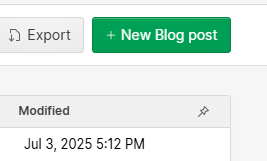
- Click New Blog Post.
- Fill out all required fields and publish.
Note: The blog can hold up to ~2,000 posts.
How to add blog authors
To add blog authors:
- Enter edit mode.
- Click Collections at the bottom.
- Click Blog Authors.
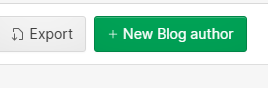
- Click Add Blog Author in the top right.
- Enter the author's name. The "slug" field fills in automatically and leave it as-is.
How to add or edit blog categories
Categories help organize your blog posts.
- Enter edit mode.
- Click Collections at the bottom.
- Click Blog Categories.
- Edit an existing category or click Add to create a new one.
Don't see Blog Categories? Click Collections first — it will appear in the list.

Frequently asked questions (FAQs)
If I update something in MyStudio, will it update on my website automatically?
Only the upcoming events list syncs automatically. Everything else — including the class calendar — needs to be updated separately on the website or in the connected Google Sheet.
What can't I edit on my own?
If your homepage uses a video (added during initial setup), you'll need your Account Manager to change it. If it's an image, you can edit it directly. The upcoming events list is auto-synced and can't be manually edited on the site.
Can I add more pages or collections?
No — contact your Account Manager to request additions.
Can I invite other people to edit the website?
You won’t be able to add additional collections or pages on your own, but if you need to make these kinds of changes, reach out to your CSM to see if we can accommodate your needs!
^ Back to top
Still need help? Contact your MyStudio account manager or reach out to our support team.