---
title: Multi-location franchise account setup
description: Learn more about our Multi-Location Franchise System. Automate Franchise fees and have global dashboards for key metrics
---
[Skip to content](https://help.mystudio.io/mystudio-multi-location-franchise-login-overview#main-content)
English
Show submenu for translations
[](https://help.mystudio.io/?hsLang=en)
Open main navigation
Close main navigation
- English
Show submenu for translations
- [Go to mystudio.io](https://www.mystudio.io/)
[Go to mystudio.io](https://www.mystudio.io/)
Hello. How can we help you?
- There are no suggestions because the search field is empty.
1. [Help Center](https://help.mystudio.io/?hsLang=en)
2. [Multi-Location Franchise System / Management](https://help.mystudio.io/multi-location-franchise-system-management?hsLang=en)
# Multi-location franchise account setup
## Learn how to set up your multi-location franchise account to connect locations, automate franchise fee processing, and view global dashboards for leads, members, sales, and payments.
###### Updated: February 20, 2026
---
### Table of contents
- [Overview](https://help.mystudio.io/mystudio-multi-location-franchise-login-overview#overview)
- [Master account setup](https://help.mystudio.io/mystudio-multi-location-franchise-login-overview#master-account)
- [Step 1: Create a master account](https://help.mystudio.io/mystudio-multi-location-franchise-login-overview#create-master-account)
- [Step 2: Set up payout information](https://help.mystudio.io/mystudio-multi-location-franchise-login-overview#set-up-payment-info)
- [Step 3: Set up a program](https://help.mystudio.io/mystudio-multi-location-franchise-login-overview#set-up-a-program)
- [Step 4: Connect franchise locations](https://help.mystudio.io/mystudio-multi-location-franchise-login-overview#connect-franchise-locations)
- [Template account setup](https://help.mystudio.io/mystudio-multi-location-franchise-login-overview#template-account)*(Global and enterprise franchise accounts)*
- [Create a template account](https://help.mystudio.io/mystudio-multi-location-franchise-login-overview#create-a-template-account)
- [Add templates to template account](https://help.mystudio.io/mystudio-multi-location-franchise-login-overview#add-templates-to-template-account)
- [Connect the template account](https://help.mystudio.io/mystudio-multi-location-franchise-login-overview#connect-template-account)
- [Frequently asked questions (FAQs)](https://help.mystudio.io/mystudio-multi-location-franchise-login-overview#frequently-asked-questions)
- [What is the multi-location franchise master account?](https://help.mystudio.io/mystudio-multi-location-franchise-login-overview#what-is-the-multi-location-franchise-master)
- [Is the franchise login the same as my regular login?](https://help.mystudio.io/mystudio-multi-location-franchise-login-overview#is-the-franchise-login-the-same-as-regular-login)
- [What is a program?](https://help.mystudio.io/mystudio-multi-location-franchise-login-overview#what-is-a-program)
- [Can I add multiple locations to my franchise account?](https://help.mystudio.io/mystudio-multi-location-franchise-login-overview#can-i-add-multiple-locations-to-franchise-account)
- [Can different locations have different programs?](https://help.mystudio.io/mystudio-multi-location-franchise-login-overview#can-different-locations-have-different-programs)
- [What if I want to connect locations but don't want to collect franchise fees?](https://help.mystudio.io/mystudio-multi-location-franchise-login-overview#What-if-connect-locations-but-not-franchise-fees)
- [Was this article helpful?](https://help.mystudio.io/mystudio-multi-location-franchise-login-overview#was-this-article-helpful)
---
#### Overview
The Multi-Location Franchise Account is designed for franchise owners who want to manage multiple locations from one central account. It allows you to connect locations, automate franchise fee processing, and view consolidated dashboards for leads, members, sales, and payments.
With a Multi-Location Franchise Account, you can:
- Add and manage multiple locations under a single master account.
- Organize locations into programs with custom franchise fee and payout settings.
- Connect locations without collecting franchise fees, if desired.
- Use templates to standardize memberships, classes, events, and retail offerings across locations.
- Access real-time, aggregated data to monitor performance and make informed decisions.
This account provides a centralized hub to simplify operations, track growth, and maintain consistency across your franchise network.
[^ Back to top](https://help.mystudio.io/mystudio-multi-location-franchise-login-overview#TABLE)
---
### Master account setup
#### Step 1: Create a master account
1. Click the [master account login page](https://cp.mystudio.io/v43/WebPortal/#/multi-location-management).
2. Click on "Register a FREE account" at the bottom.

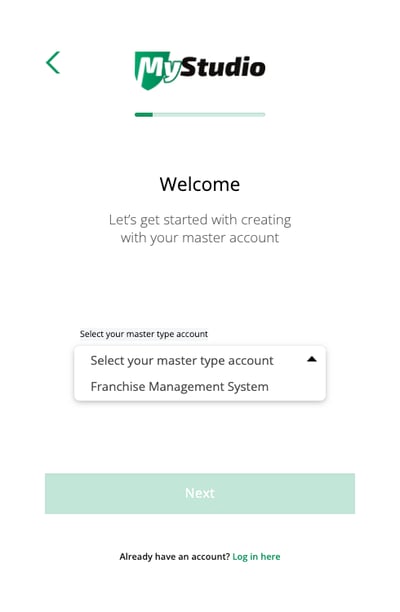
3. Click the drop down and select "Franchise Management System."
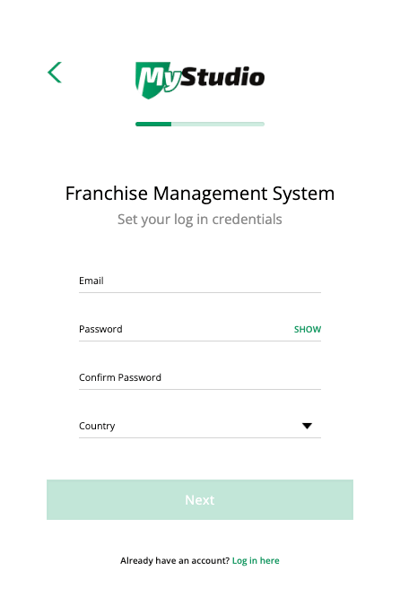
4. Set up your login information for the master account, including email address, password, and your country.
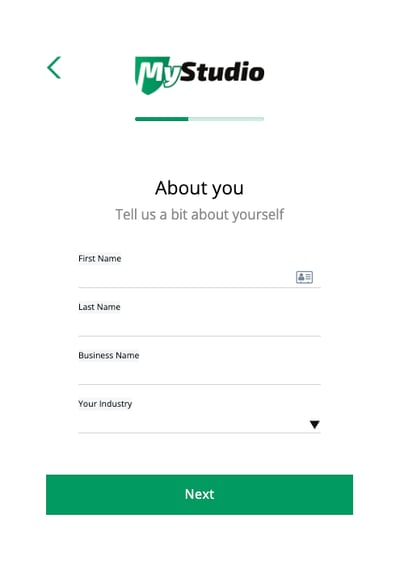
5. Fill in your details, including your first name, last name, business name, and your industry.
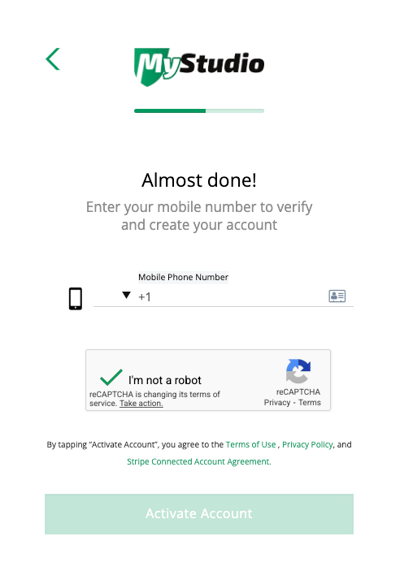
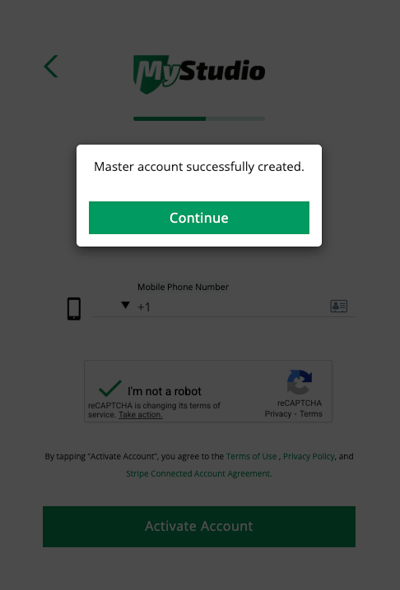
6. Enter your phone number to verify your account and click "Activate Account." You will receive a confirmation popup stating "Master account successfully created."
[^ Back to top](https://help.mystudio.io/mystudio-multi-location-franchise-login-overview#TABLE)
---
#### Step 2: Set up payout information
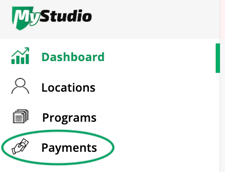
1. Click the "Payments" section.
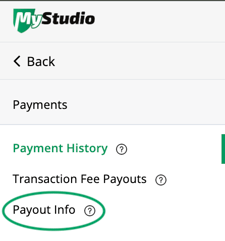
2. Click "Payout Info."
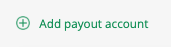
3. Click "Add payout account."
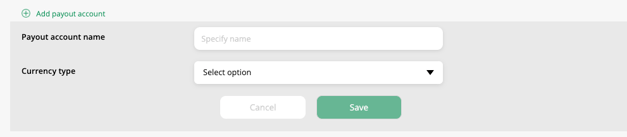
4. Type in a name for the payout account and select the currency type. Then click "Save."
5. Click on the edit pencil to add the bank information.

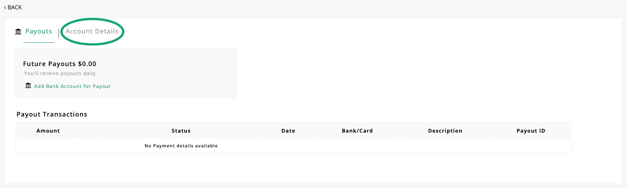
6. Click "Account details" section.
7. Click the edit pencil for "Personal details" OR "Business details" to set up your Stripe account. *(See [MyStudio Stripe Account Setup](https://help.mystudio.io/stripe-payments?hsLang=en) article for more details).*
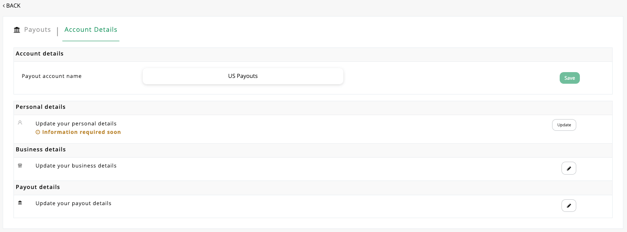
**Important:** Complete Stripe account setup is required to receive franchise fee distributions.
[^ Back to top](https://help.mystudio.io/mystudio-multi-location-franchise-login-overview#TABLE)
---
#### Step 3: Set up a program
1. Click the "Programs" section.
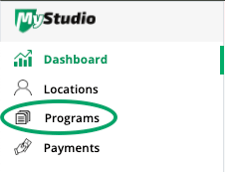
2. Click "Add program option."
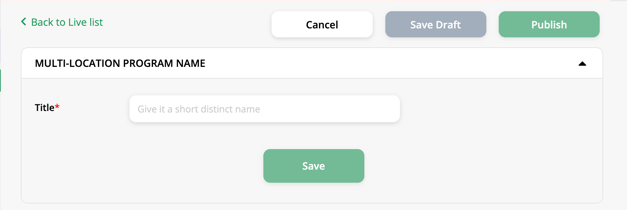
3. Enter the program name in the title field and click "Save."
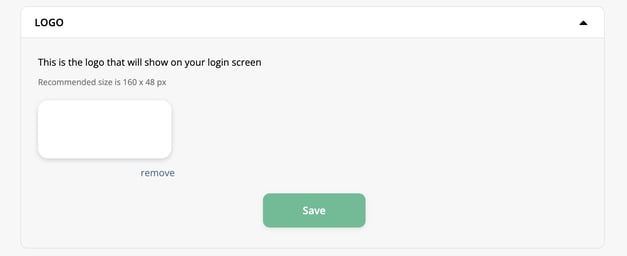
4. Upload a logo, then click "Save."
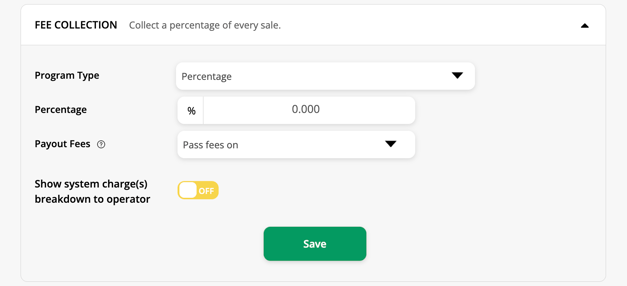
5. Under "Fee Collection" tab, configure how franchise fees are collected:
1. Select the fee percentage applied to each sale.
2. Choose whether processing fees are passed on to the location or absorbed by the franchise.
3. Toggle "show system charge(s) breakdown to operator" on or off, depending on your preference. Click "Save."
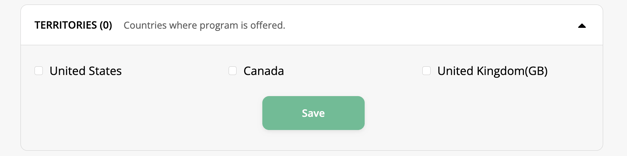
6. Under "Territories" tab, you can select one or multiple countries where this program will be offered.
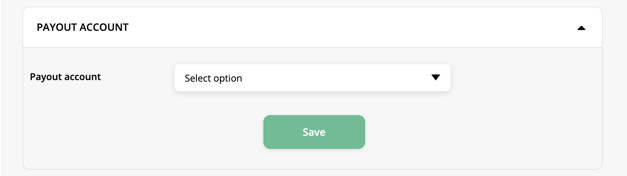
7. Under "Payout Account" tab, select the payout bank account you previously set up.
8. Under "Location Template Account" tab, Global and Enterprise Franchise accounts can connect a template account. Please contact your Account Manager for assistance.

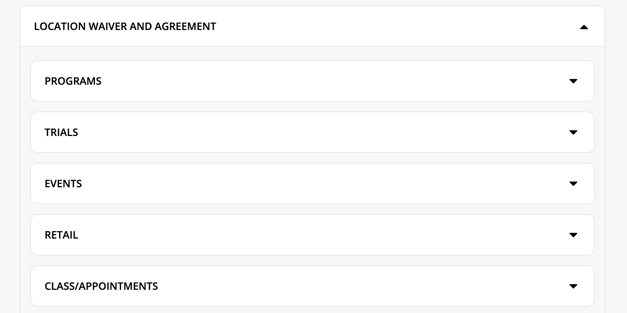
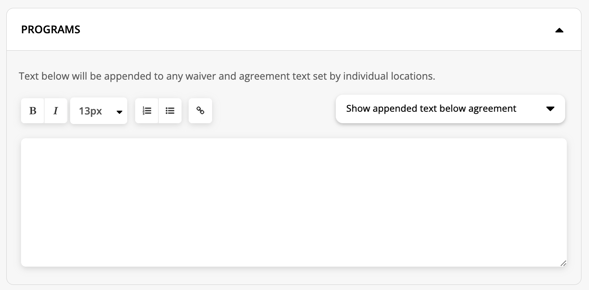
9. Under "Location Waiver and Agreement" tab, paste the waiver or agreement you would like the location to accept for specific offerings, if any. Click "Save."
10. Once all settings are complete, scroll to the top of the page and click "Publish."

[^ Back to top](https://help.mystudio.io/mystudio-multi-location-franchise-login-overview#TABLE)
---
#### Step 4: Connect franchise locations
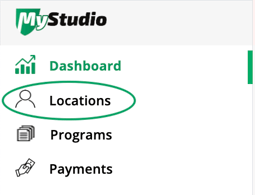
1. Click the "Locations" section.
2. Click "Connect Account" button.
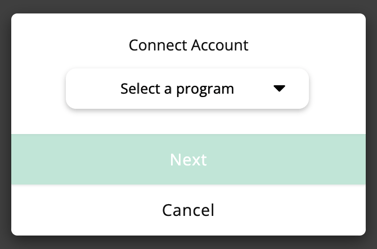
3. Select the program you want the location to be connected to, then click "next."
4. Enter the location's MyStudio login email address and studio code, then submit the request.
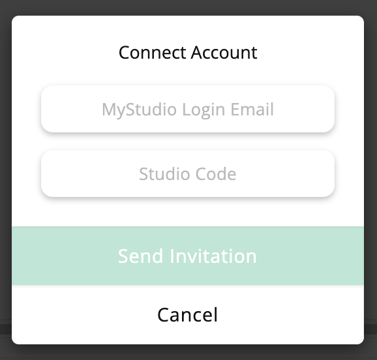
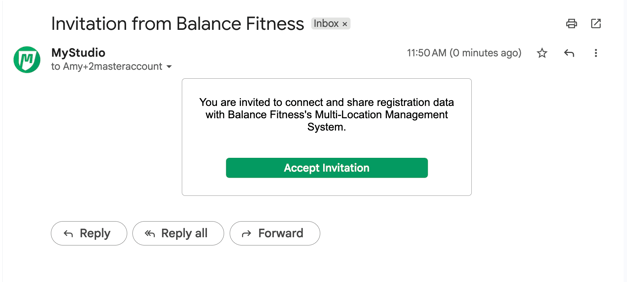
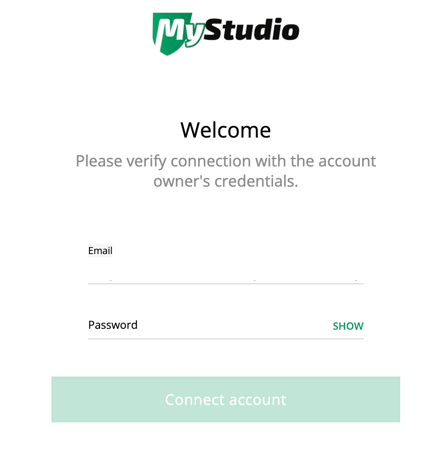
5. Once the information is entered correctly, the location will receive an email invitation to connect to your franchise account. To accept, the location owner will need press "Accept invitation" button in the email. Then sign into their account for verification.
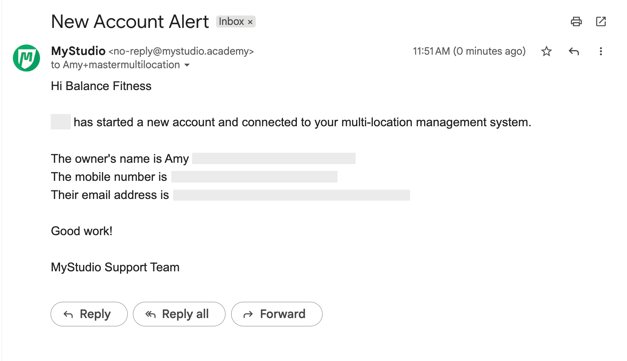
6. After the location accepts the invitation, the franchise account email will receive a confirmation email with the subject line "New Account Alert." This email confirms the connection and includes the location owner's name, phone number, and email address.
[^ Back to top](https://help.mystudio.io/mystudio-multi-location-franchise-login-overview#TABLE)
---
### Template account setup
*(Global and enterprise franchise accounts)*
#### Create a template account
Creating a template account is similar to creating a business account with MyStudio.
1. Go to the [MyStudio business login page](https://cp.mystudio.io/v43/WebPortal/#/login).
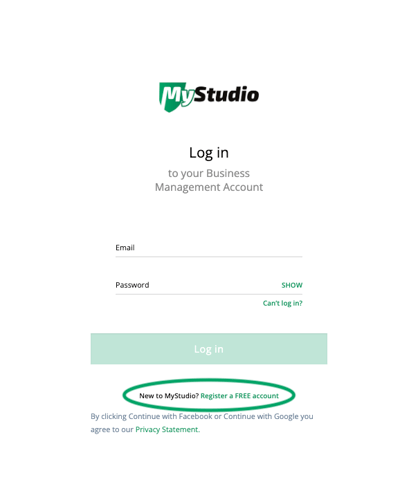
2. Click "Register a FREE account."
3. Continue the registering process.
4. Contact your Account Manager with your new template name and login email to receive the appropriate setup access.
**Note:** Only one template account can be connected to a program within a multi-location account. If you plan to have multiple programs and need templates for each, you will need to create separate template accounts.
---
#### Add templates to template account
In the template account, you can create templates for
- Trials
- Memberships
- Class Schedule
- Events
- Retail
**Note:** A template is initially configured in the same manner as a standard location account.
[^ Back to top](https://help.mystudio.io/mystudio-multi-location-franchise-login-overview#TABLE)
---
#### Connect the template account
To connect the template account to your Multi-location Franchise account, please connect your Account Manager for assistance.
[^ Back to top](https://help.mystudio.io/mystudio-multi-location-franchise-login-overview#TABLE)
---
### Frequently asked questions (FAQs)
#### What is the multi-location franchise master account?
The MyStudio multi-location franchise master account is a separate account that allows franchise owners to manage, track, and report on multiple school locations from one centralized dashboard.
[^ Back to top](https://help.mystudio.io/mystudio-multi-location-franchise-login-overview#TABLE)
---
#### Is the franchise login the same as my regular MyStudio login?
No. The franchise login is a separate account from your regular MyStudio business login. It is designed specifically for franchise owners to view aggregated data across all locations.
[^ Back to top](https://help.mystudio.io/mystudio-multi-location-franchise-login-overview#TABLE)
---
#### What is a program?
A program is a way to group locations within your franchise for reporting and fee purposes. Programs allow you to define which locations are included, set franchise fee percentages, and manage payout rules. This is useful if different locations operate under different agreements, brands, or fee structures.
[^ Back to top](https://help.mystudio.io/mystudio-multi-location-franchise-login-overview#TABLE)
---
#### Can I add multiple locations to my franchise account?
Yes! You can easily add and manage multiple locations under your franchise, allowing you to monitor performance across all schools in one place.
[^ Back to top](https://help.mystudio.io/mystudio-multi-location-franchise-login-overview#TABLE)
---
#### Can different locations have different programs?
Yes! Programs can be customized by location. You can assign specific locations to different programs as needed.
[^ Back to top](https://help.mystudio.io/mystudio-multi-location-franchise-login-overview#TABLE)
---
#### Can franchise fees vary by program or location?
Yes! Each program can have its own franchise fee percentage and payout structure. This is especially helpful is certain locations require different franchise fee arrangements.
[^ Back to top](https://help.mystudio.io/mystudio-multi-location-franchise-login-overview#TABLE)
---
#### What if I want to connect locations but don't want to collect franchise fees?
You can still connect locations without collecting franchise fees by creating a program with a 0% franchise fee. This allows you to view consolidated data and reporting across all locations while keeping financial transactions unchanged.
[^ Back to top](https://help.mystudio.io/mystudio-multi-location-franchise-login-overview#TABLE)
---
- [Navigation & FAQs](https://help.mystudio.io/navigation-faqs?hsLang=en#main-content)
- [Code Ninjas Onboarding](https://help.mystudio.io/navigation-faqs?hsLang=en#code-ninjas-onboarding)
- [Classic Version \[V1\]](https://help.mystudio.io/classic-version-v1?hsLang=en#main-content)
- [Analytics](https://help.mystudio.io/classic-version-v1?hsLang=en#analytics)
- [Payments](https://help.mystudio.io/classic-version-v1?hsLang=en#payments)
- [All Customers](https://help.mystudio.io/classic-version-v1?hsLang=en#all-customers)
- [Participant Management](https://help.mystudio.io/classic-version-v1?hsLang=en#participant-management)
- [Member Migration](https://help.mystudio.io/classic-version-v1?hsLang=en#member-migration)
- [Leads](https://help.mystudio.io/classic-version-v1?hsLang=en#leads)
- [Primary Customers](https://help.mystudio.io/classic-version-v1?hsLang=en#primary-customers)
- [Communications](https://help.mystudio.io/classic-version-v1?hsLang=en#communications)
- [Attendance Automations](https://help.mystudio.io/classic-version-v1?hsLang=en#attendance-automations)
- [Program Automations](https://help.mystudio.io/classic-version-v1?hsLang=en#program-automations)
- [Event Automations](https://help.mystudio.io/classic-version-v1?hsLang=en#event-automations)
- [Lead/Trial Automations](https://help.mystudio.io/classic-version-v1?hsLang=en#lead-trial-automations)
- [Custom Automations](https://help.mystudio.io/classic-version-v1?hsLang=en#custom-automations)
- [Task Manager](https://help.mystudio.io/classic-version-v1?hsLang=en#task-manager)
- [Point of Sale](https://help.mystudio.io/classic-version-v1?hsLang=en#point-of-sale)
- [Attendance](https://help.mystudio.io/classic-version-v1?hsLang=en#attendance)
- [Class/Appointment Calendar](https://help.mystudio.io/classic-version-v1?hsLang=en#class-appointment-calendar)
- [Retail Order](https://help.mystudio.io/classic-version-v1?hsLang=en#retail-order)
- [Staff Schedule](https://help.mystudio.io/classic-version-v1?hsLang=en#staff-schedule)
- [Trials](https://help.mystudio.io/classic-version-v1?hsLang=en#trials)
- [Memberships](https://help.mystudio.io/classic-version-v1?hsLang=en#memberships)
- [Class Schedule](https://help.mystudio.io/classic-version-v1?hsLang=en#class-schedule)
- [Events](https://help.mystudio.io/classic-version-v1?hsLang=en#events)
- [Retail](https://help.mystudio.io/classic-version-v1?hsLang=en#retail)
- [Sales Channel](https://help.mystudio.io/classic-version-v1?hsLang=en#sales-channel)
- [Integrations](https://help.mystudio.io/classic-version-v1?hsLang=en#integrations)
- [Version 2 \[V2\]](https://help.mystudio.io/version-2-v2?hsLang=en#main-content)
- [Insights](https://help.mystudio.io/version-2-v2?hsLang=en#insights)
- [Payments](https://help.mystudio.io/version-2-v2?hsLang=en#payments)
- [Contacts](https://help.mystudio.io/version-2-v2?hsLang=en#contacts)
- [Amplify](https://help.mystudio.io/version-2-v2?hsLang=en#amplify)
- [Communications](https://help.mystudio.io/version-2-v2?hsLang=en#communications)
- [Services and Products](https://help.mystudio.io/version-2-v2?hsLang=en#services-and-products)
- [Attendance](https://help.mystudio.io/version-2-v2?hsLang=en#attendance)
- [Rank Promotions](https://help.mystudio.io/version-2-v2?hsLang=en#rank-promotions)
- [Marketplace](https://help.mystudio.io/version-2-v2?hsLang=en#marketplace)
- [Tools](https://help.mystudio.io/version-2-v2?hsLang=en#tools)
- [Sales Channel](https://help.mystudio.io/version-2-v2?hsLang=en#sales-channel)
- [User Settings](https://help.mystudio.io/version-2-v2?hsLang=en#user-settings)
- [Stripe](https://help.mystudio.io/stripe?hsLang=en)
- [Twilio](https://help.mystudio.io/twilio?hsLang=en)
- [Amplify](https://help.mystudio.io/amplify?hsLang=en)
- [My Account](https://help.mystudio.io/my-account?hsLang=en#main-content)
- [Plan and Billing](https://help.mystudio.io/my-account?hsLang=en#plan-and-billing)
- [Users and Permissions](https://help.mystudio.io/my-account?hsLang=en#users-and-permissions)
- [Business Profile](https://help.mystudio.io/my-account?hsLang=en#business-profile)
- [Business Account Management](https://help.mystudio.io/my-account?hsLang=en#business-account-management)
- [Member App Actions](https://help.mystudio.io/member-app-actions?hsLang=en)
- [Business Management App](https://help.mystudio.io/business-management-app?hsLang=en#main-content)
- [Business Manager App Sections](https://help.mystudio.io/business-management-app?hsLang=en#business-manager-app-sections)
- [ATA](https://help.mystudio.io/ata?hsLang=en)
- [Business How-To's](https://help.mystudio.io/business-how-tos?hsLang=en)
- [Multi-Location Franchise System / Management](https://help.mystudio.io/multi-location-franchise-system-management?hsLang=en)
- [Referral Program](https://help.mystudio.io/referral-program?hsLang=en)
- [Custom App Set Up](https://help.mystudio.io/custom-app-set-up?hsLang=en#main-content)
- [Google](https://help.mystudio.io/custom-app-set-up?hsLang=en#google)
[](https://www.mystudio.io/)
MyStudio.io Help Center
Copyright © 2025, MyStudio